Posts

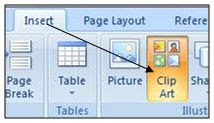
What are ready made pictures called in Word and PowerPoint?

Image
Top What are ready made pictures called in Word and PowerPoint?

How to make patient profile table in MS Word 2007

Image
Top   How to make patient profile table in MS Word 2007 To make patient profile table, you have to learn how to create a table in ms word. So friends, let's take patient profile table for example, and make the table. You can see in the below fig. 1 a patient profile table is created. Patient profile table बनाने के लिये, आपको ms word में table को कैसे बनाते है उसके बारे में सीखना होगा। तो चलिए दोस्तों, patient's table को example के तोर पे लेते है , और टेबल को बनाते है। आप निचे दिए गए चित्र १ में आप देख सकते है एक patient's profile table बनाया हुआ है।

How many types of cases found in MS Word 2007

Image
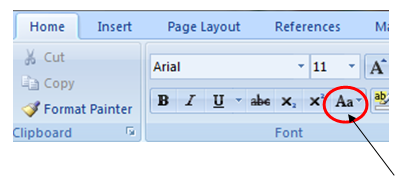
Top How many types of cases found in MS Word 2007 write name? In MS Word 2007 , the change case is very useful. There are 5 types in Change Case , which is - 1. Sentence case 2. lowercase 3. UPPERCASE 4. Capitalize Each Word 5. tOGGLECASE To change the letter face of any sentence / paragraph, first you have to select the text, and then you have to go to Home Font Tab => Aa

How to use Excel Sumif: Understand with a simple example.

Image
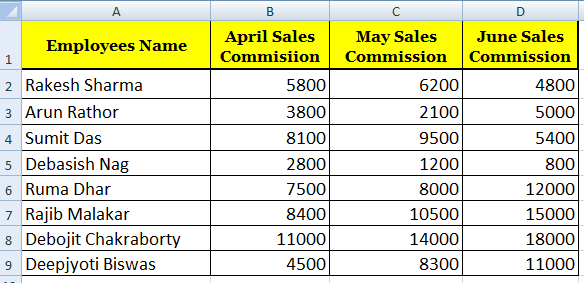
Top   How to use Excel Sumif: Understand with a simple example. How to use Sumif Formula in Excel : In MS Excel, we learn how to use excel Sumif formula when we need to sum based on the criteria. For example, if I want to get the total sales of the particular product, then we can use sumif. You can see a sales data table, which you can see in Fig. 1. ms excel sumif फार्मूला को use करते है जब कोई क्राइटेरिया के ऊपर base करके sum करना हो तो। जैसे की example के तोर पे अगर मुझे प्रोडक्ट के के सेल्स total निकलना हो तो हम sumif का use कर सकते है। आप नीचे पे एक सेल्स डाटा टेबल देख सकते है, जो की आप चित्र 1 में देख सकते है।

How to use the Excel Function combined with Sum _Offset and Match

Image
Top How to use the Excel Function combined with Sum _Offset and Match In order to understand the Sum , Offset and Match function in Excel , the data is given below, which you can see in Fig. 1. एक्सेल में Sum, Offset and Match फंक्शन को अच्छी तरहा से समझने के लिए नीचे एक डाटा दिया हुआ है, जो आप देख सकते है, चित्र 1 में।

IF with COUNTA formula | How to use the Excel COUNTA function

Image
Top IF with COUNTA formula | How to use the Excel COUNTA function Understanding EXCEL COUNTA Formula: In Excel, use COUNTA FORMULA - to count cells, that means the cell that contains the data (which is not an empty) will be counted. We understand the Excel Counta formula in such a way as to assume that we have some data from B4 to B13, which is the name of the employees. Now if we want to see how many cells have data using the formula, then we have to use the COUNTA formula. You will write the formula like this -                         = COUNTA (B4: B13)  Here, you can see Excel COUNTA Formula counts the data which is in the range of B4 -  B13,  see in Fig. 1 below.   एक्सेल में COUNTA FORMULA को use करते है - cells को काउंट करने के लिए , मतलब जिस सेल में डाटा होगा ( जो सेल ब्लेंक ना हो ) उसे वो काउंट करता जायेग। एक्सेल Counta फार्मूला को हम इस तरहा से समझते है , जैसे...
MS Excel Formulas in Hindi

Image
Top How to use Custom List in Excel In this tutorial I will explain how to use Custom List, Rand Between and rank Formula in excel. Here I use a simple mark sheet as an example. इस ट्यूटोरियल में मैं कस्टम लिस्ट , Rand Between और रैंक फॉर्मूला का उपयोग करने का तरीका बताऊंगा। यहाँ मैं एक उदाहरण के रूप में एक साधारण मार्क शीट का उपयोग करता हूं। Custom List Formula in Excel: Custom List is a series which you can store in excel for later use. For example I have some Students name and I want to store it in excel. कस्टम सूची एक श्रृंखला है जिसे आप बाद में उपयोग के लिए एक्सेल में स्टोर कर सकते हैं। उदाहरण के लिए मेरे पास कुछ छात्रों का नाम है और मैं इसे एक्सेल में संग्रहीत करना चाहता हूं Solutions: Select the name list and Click on File ==> Options ==> Advanced ==> Edit Custom List which is shown below in Fig 1 and Fig 2

Choose function in Excel

Image
Top Choose function in Excel Choose function in Excel : In this excel tutorial we are going to learn how to use the excel choose function. Here I create a salary table with the help of choose function which is shown below in Fig 1. इस एक्सेल ट्यूटोरियल में हम यह जानने जा रहे हैं कि एक्सेल Choose फ़ंक्शन का उपयोग कैसे करें। यहां मैं Choose फ़ंक्शन की मदद से एक वेतन तालिका बनाता हूं जिसे नीचे चित्र 1 में दिखाया गया है।

Using IF Formula in Excel for Icon

Image
Top Using IF Formula in Excel for Icon Friends, in this tutorial " How to set icon in Excel using IF formula " I am going to teach you how to set icon according to your data. So, let start the tutorial to learn this simple tricks. First, create a table similar to mine as shown below in Fig 1. दोस्तों , इस ट्यूटोरियल में  " IF  फॉर्मूला का उपयोग करके एक्सेल मे आइकन को केसे set करे " मैं आपको सिखाने जा रहा हूं कि आप अपनी data के अनुसार आइकन कैसे सेट कर सकते हैं। तो , इस सरल tricks को सीखने के लिए ट्यूटोरियल शुरू करें। सबसे पहले , मेरी तरह ही एक टेबल बनाएं जो कि चित्र 1 में नीचे दिखाया गया है।

Excel Logical Functions (IF AND OR)

Image
Top Excel Logical Functions (IF AND OR) In this tutorial I will explain you how to use Excel Logical Functions - IF function, AND function, OR function. Let me give you an example of how to create a "Document Verification" table using Excel Logical Functions (IF AND OR) to understand all the functions in a phased manner. First you create a document verification table which is shown in Fig. 1 below. Excel Logical Functions (IF AND OR) इस ट्यूटोरियलमें मैं आपको समझाता हूँ कि Excel Logical Functions - IF फ़ंक्शन , AND फ़ंक्शन , OR फ़ंक्शन का उपयोग कैसे करें। चरणबद्ध तरीके से सभी कार्यों को समझने के लिए मैं आपको एक उदाहरण देता हूं कि कैसे बनाएं "डॉक्यूमेंट वेरिफिकेशन" तालिका एक्सेल लॉजिकल फंक्शंस ( IF AND OR) का उपयोग करके । पहेले आप एक डॉक्यूमेंट वेरिफिकेशन टेबल बनाएं जो नीचे चित्र 1 में दिखाया गया है।

Excel If Function Multiple Criteria

Image
Top Excel If Function Multiple Criteria The IF formula in Excel is a very powerful formula, because you can solve any complex problems with this formula. To understand the formula easily, let me explain some examples. So, let's start the tutorial. Excel में IF सूत्र बहुत शक्तिशाली सूत्र है , क्योंकि आप इस सूत्र के साथ किसी भी जटिल समस्याओं को हल कर सकते हैं। सूत्र को आसानी से समझने के लिए मैं कुछ उदाहरणों की व्याख्या करता हूं। तो , ट्यूटोरियल शुरू करते हैं।

MS Word 2 Small Tips

Image
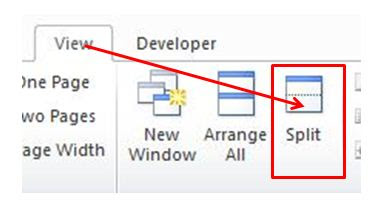
Top MS Word 2 Small Tips In this tutorial I am explain 2 small Tips in MS Word . So, let’s start the tutorial –  MS Word Tips 1 Split Window.  Split Window helps us when we want to fixed a paragraph during composing than it helps to do that. Click on View ==> Split which is shown below in Fig 1 and then click on blank space below the paragraph which is shown below in Fig 2. Now click on lower section and compose your document. इस ट्यूटोरियल में   MS Word के 2 छोटे टिप्स बता रहा हूँ। तो , आइए ट्यूटोरियल शुरू करें - एमएस वर्ड टिप्स 1- स्प्लिट विंडो। स्प्लिट विंडो हमें तब मदद करती है जब हम कंपोजिंग के दौरान एक पैराग्राफ को fixed करना चाहते हैं , स्प्लिट विंडो लाने के लिये आपको   क्लिक करना हैं View ==> स्प्लिट जो नीचे चित्र 1 में दिखाया गया है और फिर पैराग्राफ के नीचे रिक्त स्थान पर क्लिक करें जो नीचे चित्र 2 में दिखाया गया है। अब निचले खंड पर क्लिक करें और अपने दस्तावेज़ को लिखें।

Text to Speech in MS WORD 2010

Image
Top Text to Speech in MS Word In this computer tutorial you learn how to add a button in quick access toolbar i.e. Text to Speech in MS Word (speak button). Friends, sometimes when we want to check or review our composed document thoroughly than this work feels so boring but if we work on online than Google translate helps us to listen the matter thoroughly. Now, in MS Word you can add speak button in quick access toolbar to read your text. इस कंप्यूटर ट्यूटोरियल में आप सीखते हैं कि क्विक एक्सेस टूलबार में एक बटन कैसे जोड़ा जाता है , यानी एमएस वर्ड में टेक्स्ट टू स्पीच (स्पीक बटन)। दोस्तों , कभी-कभी जब हम अपने रचित दस्तावेज को अच्छी तरह से जाँचना या उसकी समीक्षा करना चाहते हैं तो यह काम बहुत उबाऊ लगता है लेकिन अगर हम Google अनुवाद में ऑनलाइन काम करते हैं तो हमें मामले को अच्छी तरह से सुनने में मदद मिलती है। अब , एमएस वर्ड में आप अपने टेक्स्ट को पढ़ने के लिए क्विक एक्सेस टूलबार में भी स्पीक बटन जोड़ सकते हैं। How to add Text to Speech in MS Word: To add Text to speech in ms word ...

2 Powerful MS Word Tips and Tricks

Image
Top 2 Powerful MS Word Tips and Tricks MS Word Tips and Tricks 1: Repeat the action Repeat the action is the most amazing features in MS Word . You can easily repeat any action which you last used earlier in your document. In this repeat action we can save our most valuable time. Suppose you change some words formatting like font size, style, color etc. but only one action is repeated not the all formatting, for example suppose you change some words formatting in this way - like firstly, you change the font, than size than color than underline, guess !! What action is repeated!! Obviously last action which is underline. So, let’s start the repeat action by selecting some words – (select it first by the help of mouse or by the help of keyboard) and use some formatting style on it and now select other words where you want to apply the same formatting in your document. To apply the same text formatting into other words or lines than press F4 to repeat the action of text formatting wh...

MS WORD TIPS AND TRICKS

Image
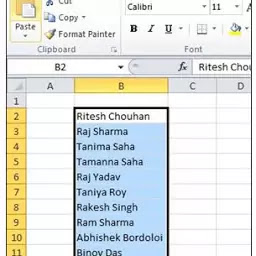
Top MS WORD TIPS AND TRICKS MS WORD TIPS 1 : VERTICAL SELECTION Sometimes we need more attractive look in our document. So, here in this MS Word Tips and Tricks tutorial I am explain how to select text vertically and use formatting on it like Text, color formatting etc. To select the vertically press alt + drag vertically with mouse which is shown below in Fig 1. कभी-कभी हमें अपने दस्तावेज़ में अधिक आकर्षक रूप की आवश्यकता होती है। तो, यहाँ इस ट्यूटोरियल में बताया गया है कि कैसे टेक्स्ट को वर्टिकली सेलेक्ट करना है और उस पर फॉर्मेटिंग का उपयोग करना है जैसे टेक्स्ट फॉर्मेटिंग, कलर फॉर्मेटिंग आदि।  वर्टिकली सेलेक्ट करने के लिए press alt + माउस ड्रैग  करके वर्टिकली सेलेक्ट कर सकते हैं। जो नीचे चित्र 1 में दिखाया गया है।

MS Word Table of Contents

Image
Top MS Word Table of Contents Tutorial In this tutorial, I am explained how to use Table of Contents in MS Word . So, lets start the tutorial, firstly open your article book or create a book / eBook for e.g I wrote my all articles with article Title/ Heading which is shown below in Fig 1. इस ट्यूटोरियल में आप सिख पायेगें, कैसे MS Word में Table of Contents का उपयोग किया जाता है। तो, ट्यूटोरियल शुरू करते है, सबसे पहले अपनी लेख पुस्तक  या ई-बुक खोलें या एक पुस्तक / ई-पुस्तक बनाएं। मैंने अपने सभी लेख, लेख शीर्षक / शीर्षक के साथ लिखे हैं जो नीचे चित्र 1 में दिखाया गया है।

MS Word Mail Merge using Excel Data Source

Image
Top MS Word Mail Merge using Excel Data Source In this tutorial I am going to clear your doubts about MS Word Mail Merge using Excel Data Source , so lets start the tutorial. Firstly open your ms word and write down your matter like letters, application etc. I wrote a letter which is shown below in Fig 1. इस ट्यूटोरियल मैं एक्सेल डेटा सोर्स का उपयोग करके एमएस वर्ड मेल मर्ज के बारे में आपकी शंकाओं को दूर करने जा रहा हूँ, ट्यूटोरियल शुरू करते हैं। सबसे पहले अपने एमएस वर्ड को खोलें और अपने मामले को लिखें जैसे पत्र, आवेदन आदि। मैंने एक पत्र लिखा हैं जो नीचे चित्र 1 में दिखाया गया है।

How to use borders and shading in word

Image
Top How to use Borders and Shading in MS - Word In this post you are learn how to use borders and shading in ms word and where is borders and shading in word ? इस पोस्ट में आप सीख रहे हैं कि ms word में बॉर्डर और शेडिंग का उपयोग कैसे करें और वर्ड में बॉर्डर और शेडिंग कहाँ है?

Spell Check in Word and how to create Custom Dictionary in MS Word

Image
Top Spell Check in Word and how to create Custom Dictionary in MS Word How to spell check in word when finalizing the document. let's start the tutorial, for example I wrote a paragraph which is shown below in Fig.1 : दस्तावेज़ को अंतिम रूप देते समय शब्द की जांच कैसे करें। आइए ट्यूटोरियल शुरू करते हैं, उदाहरण के लिए मैंने एक पैराग्राफ लिखा है जो चित्र 1 में नीचे दिखाया गया है

Useful MS Word Shortcut Keys

Image
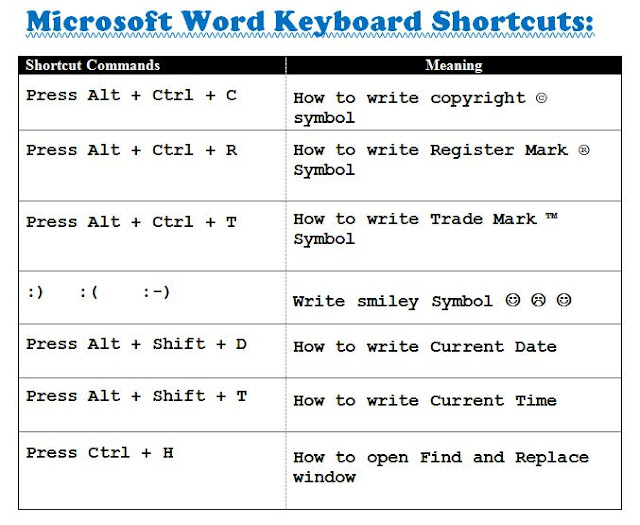
Useful MS Word Shortcut Keys   "Click here to watch the video"  Back           Home            Next  

Social Link